Degree Days.net Breakdown Options
Degree days start out as daily data, and then are combined (usually summed) to make different breakdowns. Degree Days.net offers a range of commonly-used breakdowns:
- Daily – one figure per day.
- Weekly – one figure per week. Each weekly figure is the sum of the 7 daily figures within the week. (You can specify the first day of the week.)
- Monthly – one figure per month. Each monthly figure is the sum of the 28, 29, 30, or 31 daily figures within the month.
- Custom – one figure for each custom dated period you specify. Each figure is the sum of the daily figures within its period. This is useful for generating degree days to match the often-irregular dates of utility bills.
- Average – an average annual figure calculated by averaging the total annual degree days from multiple recent years. It also includes average values for each month of the year (similarly based on averages from multiple recent years).
Custom breakdown instructions
Start by finding or assembling your dates in a spreadsheet. Assuming you want degree days to match records of energy consumption, you will probably have the dates in a spreadsheet already. If so you just have to check (and maybe modify) the format and then copy/paste the dates into the box on the website.
Step by step instructions for copy/pasting in your dates
- Select the relevant dates in your spreadsheet (see the 2 allowed formats below), and hit Ctrl-c to copy it into the clipboard (Command-c on Mac).
- Go back to the website, click your mouse in the box (the one just under the list of breakdown options), and hit Ctrl-v to paste (Command-v on Mac).
- The website should show you a table of your dates... Check it over to see that it interpreted everything correctly. If it didn't, edit the dates in your spreadsheet and try copy/pasting again.
Don't worry if your spreadsheet contains a lot of other data too – you can select/copy/paste only the cells containing the dates you want.
Getting your spreadsheet dates into the right format
Your dates can have one of two formats. The examples below show the same dates specified in each of the 2 formats:
The first-day-only format is a common format for spreadsheets of energy-usage data. The specified dates must be the first day of each period. The last day of each period is assumed to be the day before the first day of the next. You may need extra rows with dates to specify any gaps in the data and to help the website figure out when the last period ends:
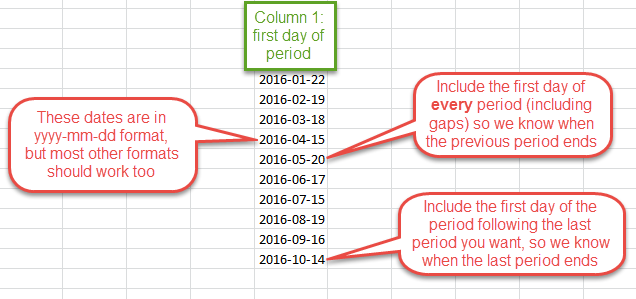
If your dates are regular daily, weekly, monthly (each month starting on the same day), or yearly dates, you shouldn't need the final row as the website should figure out the end of the last period automatically. But it's not a bad idea to include it anyway, for clarity.
The first-and-last-day format can be a good one to use if you have gaps in your data as you can typically add an extra column (column 2 in the example below) and insert a few dates without affecting other parts of your spreadsheet:
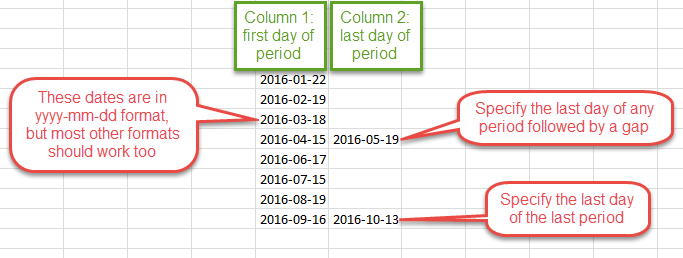
With the first-and-last-day format you can specify the last day of every period (in column 2), but for the normal case (the last day of one period being the day before the first day of the next) you can just leave it blank.
Date formats
Date formats are a source of much confusion for computer systems. Something like 10/11/12 is highly ambiguous as it can be interpreted as mm/dd/yy, or dd/mm/yy, or even yy/mm/dd.
We like the ISO date format yyyy-mm-dd because it is totally unambiguous. But we've programmed the website to do its best to make sense of a variety of other formats as well. People from all over the world use Degree Days.net and we don't want to force them to change their spreadsheets any more than necessary before copy/pasting their dates in.
So we suggest you try copy/pasting your dates as they are. Our system will say if it can't make sense of them, and, if it interprets your dates wrong, you should be able to see from the table it displays immediately after you paste your dates into the box.
If it's not working correctly, try changing the format of all your dates to yyyy-mm-dd. This is easy to do in Excel: select all the date cells, right-click, select "Format Cells...", then "Custom", type yyyy-mm-dd in the "Type:" box, and click "OK". If your original date format was a common one that you would expect to work automatically, please email us so we can see if there's a way we can improve the system.